
Help · For staff, administrators and families
The family portal
A page where invited family members see the updates your staff share with them, and, if your home chooses, send you a note or an appointment they booked. It is off until your home turns it on.
What families see, and what they never see
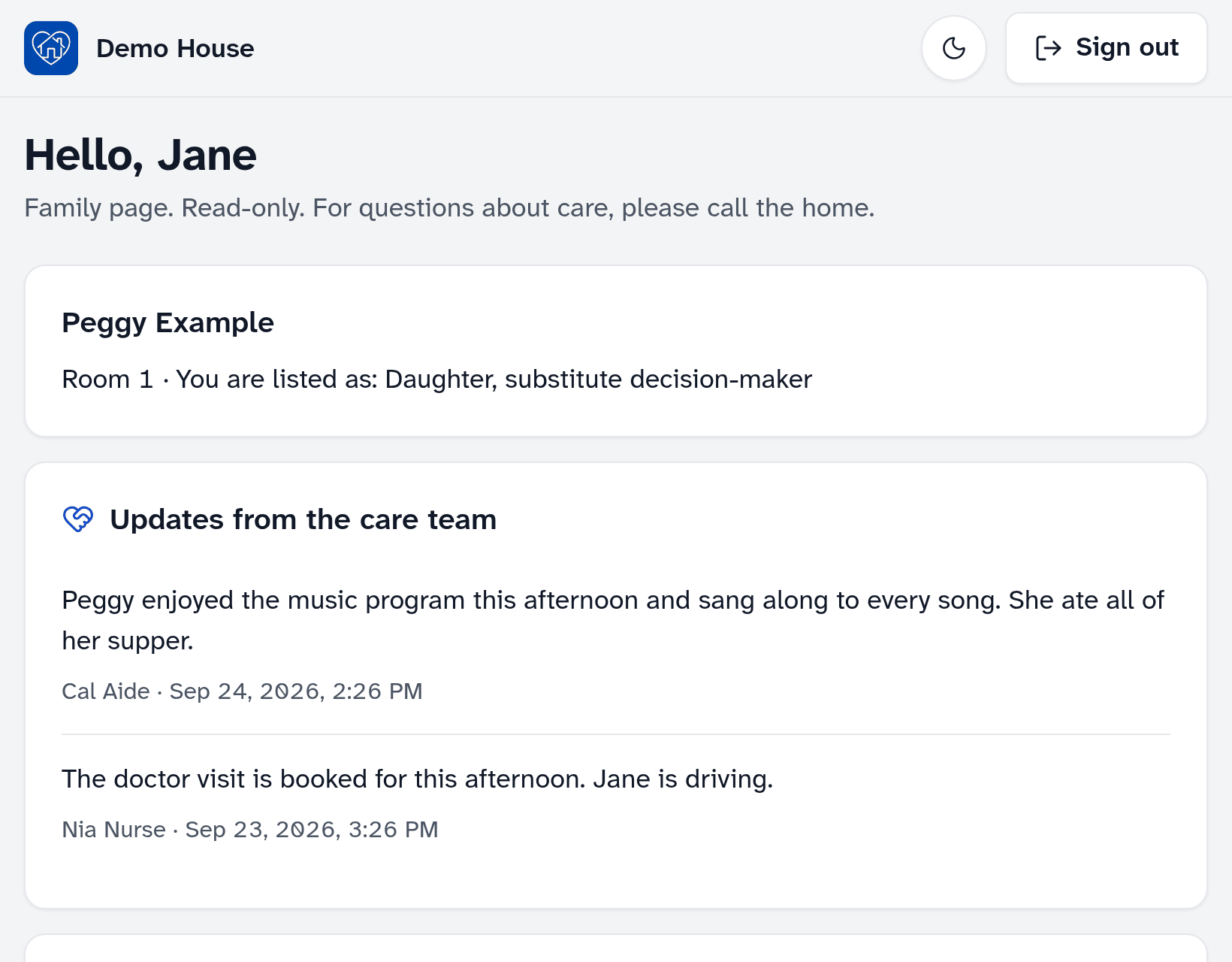
- Always: their relative’s name and room, and the updates staff share with them.
- If your home turns them on: upcoming appointments for the next 2 months, vital signs from the last 30 days (blood pressure, pulse, temperature, oxygen and weight), and photos your staff share with an update.
- Never: care notes, medications, diagnoses, incidents, or anything about another resident. Each update shows the name of the staff member who shared it.
Families can’t change anything about their relative’s record. If your home turns it on, they can send you a message or submit an appointment they booked (below). Otherwise they call the home.
Turning it on (administrators)
- Open Settings and find Family portal.
- Tick Turn on the family portal, and choose whether to show upcoming appointments and vital signs, whether families can send you a message or an appointment they booked, and whether staff can share photos with updates.
- Tap Review changes, then Save settings.
Granting a family member access (administrators)
Only give access to someone entitled to see the resident’s information, such as their substitute decision-maker or someone the resident has agreed to. If you are unsure, ask your privacy officer, and keep a note of the consent in the resident’s documents.
- Open the resident and tap Family.
- Under Family members with access, tap Grant access.
- Enter their name, email and relationship to the resident, tick the box to confirm they are entitled to see the information, and tap Grant access.
They set a password and an authenticator app, then sign in on the same MapSorix Care sign-in page as office staff. If they don’t receive an email to set a password, they can choose Forgot password? on that page. One family account can be given access to more than one resident.
To end someone’s access, tap Revoke access beside their name. It takes effect immediately. To correct their name or change the email they sign in with, tap Edit name or email: a new email signs them out everywhere, and both addresses are notified.
When a resident leaves the home (administrators)
When a resident is discharged, their family’s access is suspended immediately, and the family portal tells them to contact the home. The resident’s Family tab lists them under Access suspended at discharge.
Restore access only for someone still entitled to the information, for example the resident’s personal representative. Tap Restore access, tick the box to confirm they are still entitled and that you have it on file, and confirm. Or tap Revoke access to end it permanently. If you are unsure, ask your privacy officer.
Sharing an update (all staff)
- Open the resident and tap Family.
- Under Updates for family, write it as you would say it to them, for example “Mary enjoyed the music program this afternoon and ate all of her supper.”
- Tap Share with family. It is signed with your name.
Don’t mention other residents, and leave medical details for the nurse to discuss with the family.
Adding a photo
Only if your home has ticked Staff can share photos with updates in Settings. Share a photo only when the resident, or their substitute decision-maker, has agreed, and only when nobody else can be recognised in it or everyone who can has agreed.
- Write the update, then tap Take a photo or Choose a photo. MapSorix Care makes a copy of the picture on the device, which leaves out where and when it was taken.
- Check the photo, choose who agreed to sharing it, and tick the box about anyone else in it.
- Tap Share with family, with the photo.
If consent is withdrawn, someone else can be recognised in it, or it was shared by mistake, a nurse, an administrator or whoever shared it taps Remove photo and chooses the reason. It is removed from the family portal immediately; the text of the update remains. Like every entry in the record, the photo is retained, marked as removed. If your home turns photos off, the photos already shared are removed from the family portal too. Photos are never printed or included in a copy of the record.
Messages and appointments from families (nurses and administrators)
Only if your home has ticked Families can send a message or Families can submit appointments they have booked in Settings. It is one way: families send, and you answer by phone, or with an update for family. Families are told messages are not monitored 24 hours a day and to call for anything urgent.
- Open Family messages in the menu. Today shows a card when something new has arrived, and the administrators get an email that says only that something arrived, not who sent it or what it is about.
- Tap Acknowledge on each message and appointment once you have read it, choose a ready-made reply if you like (for example “Thank you. We have passed it on to the care team.”), and confirm. The family then sees that the home received it, and the reply, not who acknowledged it. There is nothing to type: for anything more, call them.
- If it is easier to talk, tap Request call-back. The family sees “Please call the home” with your number. If the matter is urgent, call them directly.
- For an appointment, check it first: medications to give early or send along, fasting, transport, and anything already booked that day. Then tap Add to the calendar: the appointment form opens with what the family sent, for you to correct and save. Adding it acknowledges it too, and you can add an appointment you acknowledged earlier.
When you acknowledge a message, add it to the calendar or request a call-back, the family member gets an email saying the home has answered, unless they turned it off, and a notification on their own phone or computer if they turned that on. Neither says what the message or the answer was about: they sign in to read it.
Nothing a family sends goes on the calendar or the resident’s record until a nurse or administrator adds it. What they send is kept with the resident’s records and can’t be deleted.
For families
- Please don’t share your sign-in, and please don’t post or forward what you see. It is your relative’s health information.
- You are signed out after 15 minutes without activity. Sign out when you finish, especially on a shared computer.
- Every visit is recorded with your name and the time, so the home can tell your relative who has seen their information.
- If the home has turned it on, you can send the home a message or submit an appointment you booked, from your relative’s page. You’ll see when the home has received it, and any short reply. If the home requests a call-back, its number is right there. Messages are not monitored 24 hours a day: for anything urgent, call the home.
- The page tells you what is new since your last visit. You are emailed when the home answers one of your messages; to stop that, or to get a notification on your own phone or computer instead, open the menu with your name and choose My account. On a shared computer, leave device notifications off.
- On My account you can also change your password, transfer your authenticator app to a new device, and sign out everywhere. To change your name or sign-in email, ask the home.
- Photos the home shares are of your relative, shared with their consent or their substitute decision-maker’s. Please don’t post or forward them.
- Questions about your relative’s care go to the home, not to MapSorix.
More help
- Signing in on a care tablet
- The medication pass
- Correcting a mistake
- Writing a care note
- When the internet drops
- Recording vital signs
- Filing an incident report
- Clocking in and out
- Care plans and assessments
- The family portal
- Your pharmacy and the pharmacy portal
- The pharmacy portal, for pharmacies
- Staff, tablets and support access
- Resident billing
- Getting ready for an inspection
All help · Questions: care@mapsorix.com or (306) 400-1800, Monday to Friday, 9 AM to 5 PM Saskatchewan time.