
Help · For pharmacists and pharmacy staff
The pharmacy portal, for pharmacies
A care home you serve can pair with your pharmacy in MapSorix Care. You send that home its documents in one place and answer the requests it sends you.
What you see, and what you don’t
- The homes that have approved your pharmacy, each by a number and its name.
- The requests each home has sent you, with the resident’s name, room and bed, date of birth and allergies, and the home’s phone number.
- The documents you sent, and whether each one is waiting for the home, approved or rejected.
- Not a list of the home’s residents, and not any resident’s record. A question about a resident goes to the home by phone.
Opening your pharmacy’s account
You need a pairing code from a home your pharmacy serves. The home’s administrator makes one and gives it to you by phone or in person. It works once and for 48 hours.
- Go to the address the home gives you with the code. On the sign-in page it is the link Register your pharmacy with a pairing code.
- Enter your name, your pharmacy’s name, your own work email and the pairing code, and tick that you accept the pharmacy portal terms for your pharmacy. Only someone allowed to agree to them for the pharmacy should open its account.
- Open the link sent to that address and choose your password. The link works for 1 hour. If nothing arrives after a few minutes, check your junk folder, then use Forgot password? on the sign-in page.
- Sign in. The first time, you set up two-step verification with an authenticator app on your phone.
- The home’s administrator approves your request. Until then, the portal shows nothing from the home.
If your pharmacy already has an account, sign in and tap Add home to use another home’s code.
If your code does not work, check it with the home or ask them for a new one. After 5 tries in an hour from one place, no code is accepted there until the hour is up.
Sending documents to a home
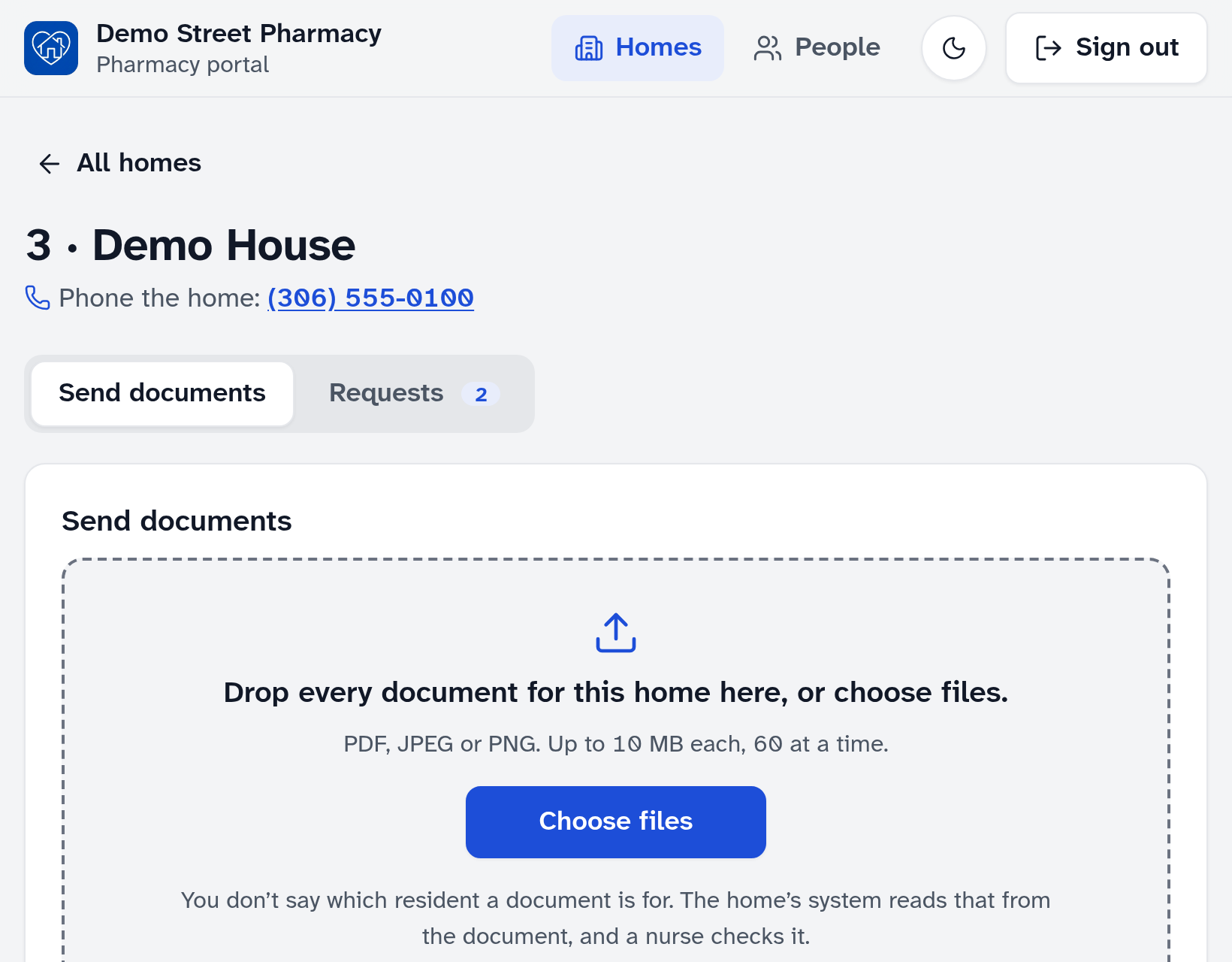
- Tap Homes and choose the home.
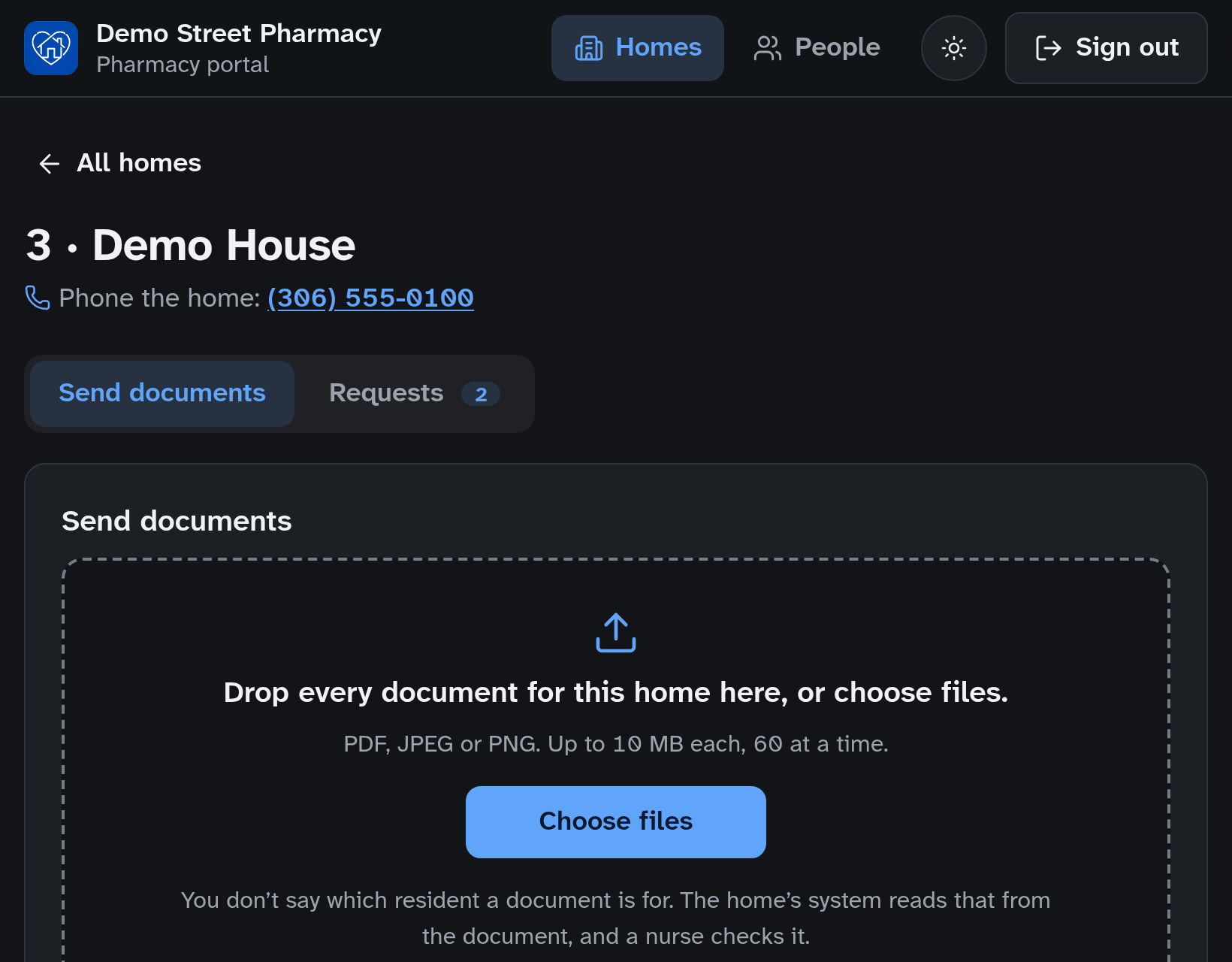
- Drop every document for that home in the box, or tap Browse files. PDF, JPEG or PNG, up to 10 MB each and 60 at a time.
- You don’t say which resident a document is for. The home’s system reads that from the document, and a nurse checks it.
Under Sent documents, each batch shows how many documents are waiting for the home, approved and rejected. Open a batch to see each file, and the nurse’s reason for any that were rejected. A file you have already sent is not sent twice; if a nurse rejected it, you can send it again.
Make sure each document shows the resident’s full name and date of birth. A document without both, or one that names more than one person, waits longer because a nurse has to sort it by hand.
Answering a home’s requests
Each request is for one resident of a home you are paired with. Tap Acknowledge when you have seen it, Mark as in progress while you work on it, and Mark as filled when it is done. You can add a note and the date you expect to have it ready. If you can’t fill it, tap Cannot fill and say why. The home sees each step.
On the People page you can choose to be emailed when a home sends a request. The email never says who or what the request is about.
Your colleagues
Each person has their own sign-in. Sharing one is not allowed: everything done in the portal is recorded under the name of the person signed in, and each home can see it.
- A manager of your pharmacy’s account adds a colleague on the People page with Add colleague, and takes a sign-in away with Remove. A colleague can be added once a home has approved your pharmacy.
- Each colleague is asked to accept the pharmacy portal terms the first time they sign in, before the portal shows anything. When the terms change, everyone is asked again, and a manager accepts them for the pharmacy.
- The person who opened the account is its first manager. A manager can assign the manager role to a colleague with Assign manager role, once that colleague has signed in.
- A pharmacy always has at least one manager. To hand over, make a colleague a manager first; you can then stop managing the account, and they can remove you if you are leaving.
- A manager corrects a colleague’s name, or their own, and changes a colleague’s sign-in email with Edit name or email. A new email signs them out everywhere, and both addresses are notified. Another manager changes yours.
Your own account
Choose My account at the top of the portal. There you choose whether you’re emailed when a home sends a request, change your password (after your current one and a code from your authenticator app), move your authenticator app to a new phone while you still have the old one, and sign out everywhere. Changing your password or authenticator app signs you out on every other device, and you get an email saying so.
If you lose the phone with your authenticator app
Ask a manager of your pharmacy’s account. On the People page they tap Reset authenticator app beside your name. You are signed out, and the next time you sign in with your password you set up an authenticator app again.
Nobody can reset their own. If you are your pharmacy’s only manager, contact MapSorix at care@mapsorix.com or (306) 400-1800. We check who is asking with a home you are paired with before we reset anything.
Staying signed in
- You are signed out after 15 minutes without use, and 8 hours after you sign in.
- Sign out when you finish, especially on a computer other people use.
- If a home ends its pairing with your pharmacy, that home leaves your list right away. Your other homes are not affected.
More help
- Signing in on a care tablet
- The medication pass
- Correcting a mistake
- Writing a care note
- When the internet drops
- Recording vital signs
- Filing an incident report
- Clocking in and out
- Care plans and assessments
- The family portal
- Your pharmacy and the pharmacy portal
- The pharmacy portal, for pharmacies
- Staff, tablets and support access
- Resident billing
- Getting ready for an inspection
All help · Questions: care@mapsorix.com or (306) 400-1800, Monday to Friday, 9 AM to 5 PM Saskatchewan time.